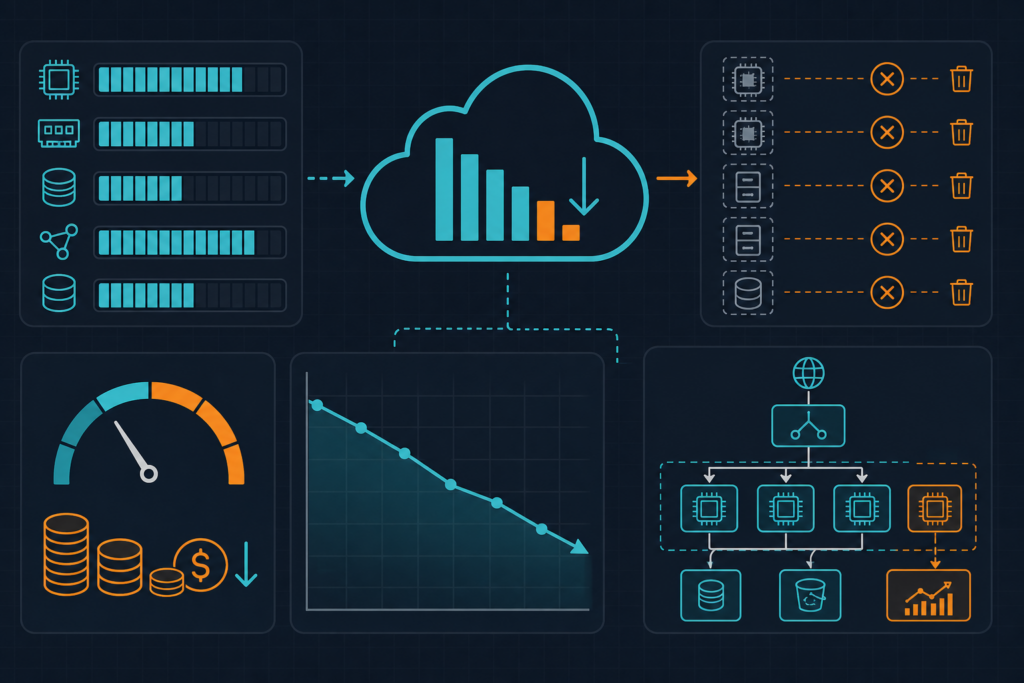
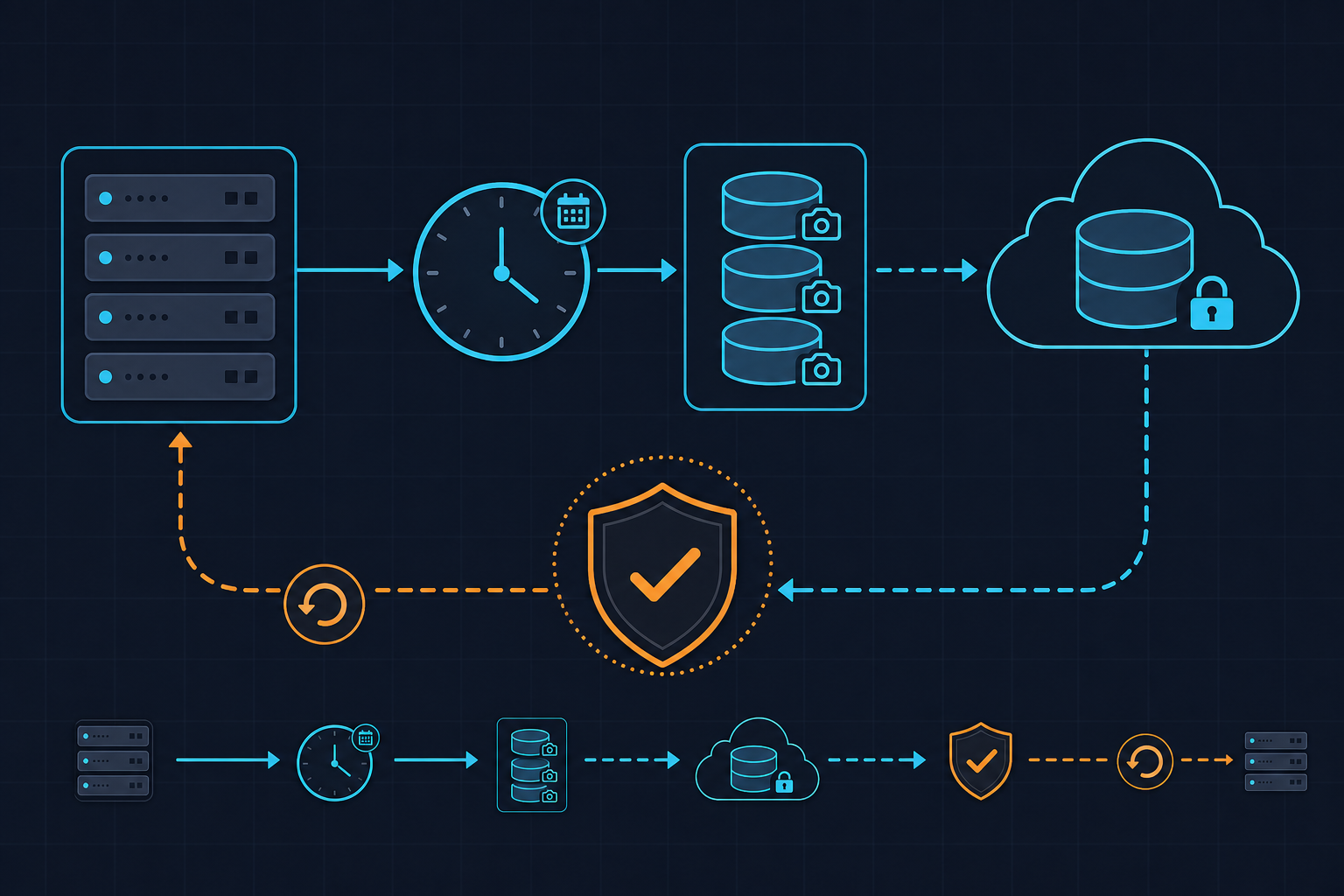
S3 lifecycle governance for logs, backups, and compliance data is one of those infrastructure concerns that gets deferred until a cost spike or an audit request forces the conversation. By that point, you are typically looking at terabytes of objects in STANDARD storage that should have moved to GLACIER months ago, or noncurrent versions accumulating silently in a versioned bucket with no expiration rule in sight. Getting ahead of this with a structured, prefix-scoped lifecycle configuration is straightforward — but the details matter.
This post covers the full workflow: IAM and bucket prerequisites, writing a policy file that handles three distinct data categories, applying it via the AWS CLI, and confirming that rules are behaving as intended. For background on related cost-control patterns on AWS, see the DevOps_DayS archive.
Requirements

Before writing a single lifecycle rule, you need a clear picture of what you are governing. Ambiguous bucket layouts produce overlapping Filter.Prefix values, and when two rules match the same object, AWS applies only the most specific match — silently. Objects that fall under a broader prefix with no expiration set will accumulate indefinitely, which is exactly the failure mode we are trying to prevent.
Bucket structure. Enforce a strict top-level prefix convention from day one:
logs/— application and access logs, rotated frequently, moderate retention windowbackups/— database dumps, snapshot exports, long-term retention requiredcompliance/— audit trails, signed records, regulatory hold up to seven years
Tagging convention. Each object (or the upload process that writes it) must apply a retention tag. The three accepted values in this setup are standard, long-term, and regulatory. Combining prefix and tag in a rule’s Filter.And block gives you precise targeting and prevents a misplaced object from inheriting the wrong expiration policy.
Versioning. If the bucket has versioning enabled — and it should for compliance and backup prefixes — you must configure NoncurrentVersionExpiration separately. Omitting it is one of the most common mistakes in lifecycle setups: current-version expiration fires correctly, but previous versions pile up indefinitely and contribute to storage costs just as much as current objects do.
IAM permissions. The principal applying the configuration needs both s3:PutLifecycleConfiguration and s3:GetLifecycleConfiguration on the target bucket. In a CI/CD context, scope these to the specific bucket ARN rather than a wildcard. AWS documents the full list of S3 lifecycle permissions in the S3 User Guide — Lifecycle Configuration Examples.
Server access logging. Enable S3 server access logging on the target bucket before you apply any rules. Transition and expiration events will surface in those logs, which is the most direct way to confirm that lifecycle actions are firing during the test phase.
Implementation
Store lifecycle policy files under ./policies/ using the naming convention s3-lifecycle-<env>.json. This keeps environment-specific configurations versioned in your infrastructure repository alongside Terraform or CloudFormation resources, rather than buried in a wiki or applied manually and forgotten.
The policy below handles all three data categories in a single configuration document. Each rule uses a combined prefix-and-tag filter, a storage class transition ladder appropriate to that data type, a hard expiration date, and noncurrent version expiration for the versioned prefixes.
{
  "Rules": [
    {
      "ID": "logs-tiering-and-expiry",
      "Status": "Enabled",
      "Filter": {
        "And": {
          "Prefix": "logs/",
          "Tags": [{ "Key": "retention", "Value": "standard" }]
        }
      },
      "Transitions": [
        { "Days": 30,  "StorageClass": "STANDARD_IA" },
        { "Days": 90,  "StorageClass": "GLACIER" }
      ],
      "Expiration": { "Days": 365 },
      "NoncurrentVersionExpiration": { "NoncurrentDays": 30 }
    },
    {
      "ID": "backups-deep-archive",
      "Status": "Enabled",
      "Filter": {
        "And": {
          "Prefix": "backups/",
          "Tags": [{ "Key": "retention", "Value": "long-term" }]
        }
      },
      "Transitions": [
        { "Days": 7,   "StorageClass": "STANDARD_IA" },
        { "Days": 30,  "StorageClass": "GLACIER" },
        { "Days": 180, "StorageClass": "DEEP_ARCHIVE" }
      ],
      "Expiration": { "Days": 2555 },
      "NoncurrentVersionExpiration": { "NoncurrentDays": 90 }
    },
    {
      "ID": "compliance-hold-seven-years",
      "Status": "Enabled",
      "Filter": {
        "And": {
          "Prefix": "compliance/",
          "Tags": [{ "Key": "retention", "Value": "regulatory" }]
        }
      },
      "Transitions": [
        { "Days": 1,   "StorageClass": "GLACIER" },
        { "Days": 365, "StorageClass": "DEEP_ARCHIVE" }
      ],
      "Expiration": { "Days": 2555 },
      "AbortIncompleteMultipartUpload": { "DaysAfterInitiation": 7 }
    }
  ]
}
A few design decisions worth noting. The compliance/ rule moves objects to GLACIER after just one day — compliance data is written once and rarely if ever retrieved, so there is no justification for keeping it in STANDARD. The AbortIncompleteMultipartUpload block on that same rule prevents partial uploads from accumulating storage charges if a multipart write fails mid-way. The backups/ rule uses a three-step ladder ending at DEEP_ARCHIVE after 180 days, with a seven-year hard expiration matching common regulatory requirements.
Apply the configuration with the following command, substituting your bucket name and the correct environment suffix in the file path:
aws s3api put-bucket-lifecycle-configuration \
  --bucket your-bucket-name \
  --lifecycle-configuration file://policies/s3-lifecycle-prod.json
The command returns no output on success. To confirm the rules were accepted and stored correctly, retrieve the active configuration immediately after applying it:
aws s3api get-bucket-lifecycle-configuration \
  --bucket your-bucket-name
Compare the returned JSON against your source file. Pay particular attention to the Filter blocks — AWS sometimes normalizes the structure slightly, and confirming that prefix and tag values are intact catches any serialization issues before they become a silent misconfiguration in production.
Test the Setup
Lifecycle rules do not fire immediately after application. AWS evaluates them once per day, typically within 24 hours of the scheduled transition date. For that reason, functional testing relies on inspecting rule metadata and object inventory rather than waiting for actual transitions to occur in real time.
Start by confirming rule status and filter accuracy using the get-bucket-lifecycle-configuration call shown above. Cross-reference each rule’s ID, Status, Filter, and Transitions against the source file. Any discrepancy here — a missing tag, a wrong prefix — means the rule is either not targeting the objects you expect or is potentially conflicting with another rule.
To inspect which objects are currently in scope for each rule, configure an S3 Inventory report targeting the source bucket. Inventory reports are delivered to a separate bucket on a daily or weekly schedule and include the storage class of each object. Once a report is available, you will find it at a path following this convention:
s3://your-inventory-bucket/inventory/your-source-bucket/config-id/Download the manifest and spot-check objects under logs/, backups/, and compliance/. Objects that have passed their transition threshold but are still listed as STANDARD indicate either a tag mismatch or a rule evaluation delay. Objects correctly tagged and past their transition date should appear as STANDARD_IA, GLACIER, or DEEP_ARCHIVE in subsequent reports.
For CloudWatch-based monitoring, the NumberOfObjects metric with a StorageType dimension of GlacierStorage or DeepArchiveStorage will increase as transition rules fire. Set a CloudWatch alarm or dashboard widget on this metric per prefix to track archival progress over the first billing cycle after deployment.
To validate that noncurrent version expiration is working on the versioned prefixes, list object versions directly:
aws s3api list-object-versions \
  --bucket your-bucket-name \
  --prefix backups/ \
  --query "Versions[?IsLatest==\`false\`].[Key,LastModified,StorageClass]" \
  --output table
Any noncurrent versions older than the NoncurrentDays threshold that are still present after 24–48 hours warrant investigation. Common causes are versioning being suspended rather than enabled, or the rule filter not matching because the object was uploaded without the expected retention tag.
- Prefix isolation is non-negotiable. Overlapping prefixes cause silent rule conflicts — always use distinct top-level prefixes and validate with
get-bucket-lifecycle-configurationafter every change. - Tags drive rule targeting. Combine
Filter.Andwith both prefix and tag to prevent misplaced objects from inheriting the wrong retention policy. - Always set
Expiration.Days. A transition ladder without a hard deletion date is an incomplete policy; data will eventually stop transitioning further but will never be removed. - Versioned buckets require a separate
NoncurrentVersionExpirationblock on every rule that touches a versioned prefix — omitting it is the most common source of unexpected storage growth. - S3 Inventory plus CloudWatch metrics are your two monitoring layers: Inventory confirms object-level state, and
NumberOfObjectsby storage class confirms aggregate transition progress at the billing level.