Why Automate Backups with Bash?
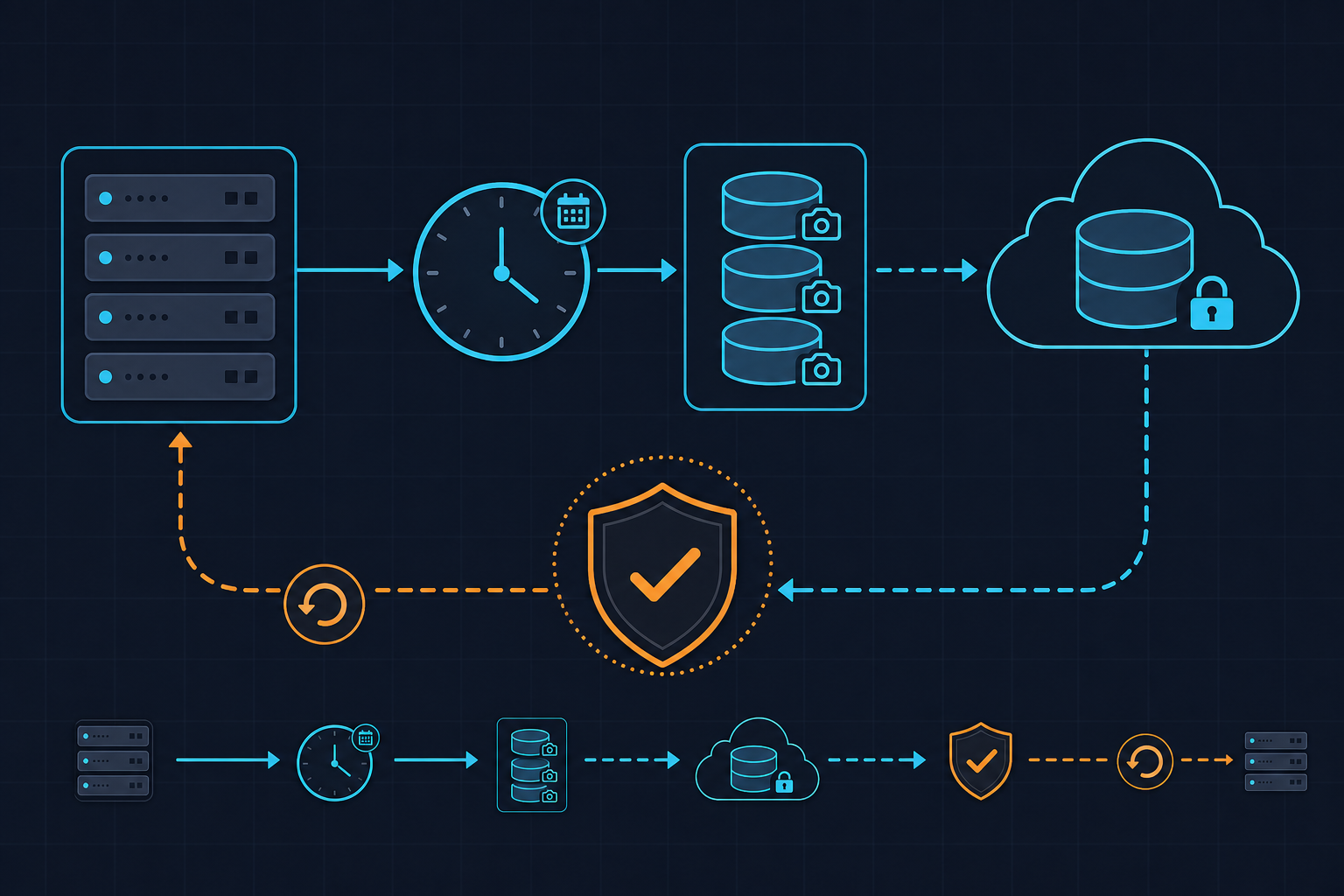
Manual backups are a disaster waiting to happen. In this tutorial we build a production-ready Bash script that runs nightly via cron, compresses your data, ships it to S3, rotates old backups, and writes structured logs you can actually parse. Every line is something we run in real environments at kuryzhev.cloud.
The Full Backup Script
Save this as /usr/local/bin/nightly_backup.sh and make it executable with chmod +x.
#!/usr/bin/env bash
# nightly_backup.sh — production backup script
# Blog: kuryzhev.cloud | DevOps_DayS

set -euo pipefail

# ── Configuration ────────────────────────────────────────────
BACKUP_SRC="/var/www/html /etc/nginx /etc/mysql"
BACKUP_DIR="/var/backups/nightly"
S3_BUCKET="s3://your-backup-bucket/nightly"
RETENTION_DAYS=7
LOG_FILE="/var/log/nightly_backup.log"
DATE=$(date +"%Y-%m-%d_%H-%M-%S")
HOSTNAME=$(hostname -s)
ARCHIVE_NAME="${HOSTNAME}_backup_${DATE}.tar.gz"

# ── Logging helper ───────────────────────────────────────────
log() {
  local level="$1"; shift
  echo "{\"timestamp\":\"$(date --iso-8601=seconds)\",\"level\":\"${level}\",\"msg\":\"$*\"}" \
    | tee -a "${LOG_FILE}"
}

# ── Pre-flight checks ────────────────────────────────────────
for cmd in tar aws find; do
  command -v "${cmd}" &>/dev/null || { log ERROR "Missing dependency: ${cmd}"; exit 1; }
done

mkdir -p "${BACKUP_DIR}"

# ── Create compressed archive ────────────────────────────────
log INFO "Starting backup: ${ARCHIVE_NAME}"

tar -czf "${BACKUP_DIR}/${ARCHIVE_NAME}" \
  --exclude='*.sock' \
  --exclude='*/cache/*' \
  ${BACKUP_SRC} 2>/dev/null

ARCHIVE_SIZE=$(du -sh "${BACKUP_DIR}/${ARCHIVE_NAME}" | cut -f1)
log INFO "Archive created — size: ${ARCHIVE_SIZE}"

# ── Upload to S3 ─────────────────────────────────────────────
log INFO "Uploading to ${S3_BUCKET}"

aws s3 cp "${BACKUP_DIR}/${ARCHIVE_NAME}" \
  "${S3_BUCKET}/${ARCHIVE_NAME}" \
  --storage-class STANDARD_IA \
  --only-show-errors

log INFO "Upload complete"

# ── Local retention cleanup ───────────────────────────────────
DELETED=$(find "${BACKUP_DIR}" -name "*.tar.gz" \
  -mtime +"${RETENTION_DAYS}" -print -delete | wc -l)
log INFO "Rotated ${DELETED} old local archive(s)"

# ── S3 retention cleanup ──────────────────────────────────────
CUTOFF=$(date -d "-${RETENTION_DAYS} days" +"%Y-%m-%d")
aws s3 ls "${S3_BUCKET}/" \
  | awk '{print $4}' \
  | while read -r obj; do
      OBJ_DATE=$(echo "${obj}" | grep -oP '\d{4}-\d{2}-\d{2}')
      if [[ "${OBJ_DATE}" < "${CUTOFF}" ]]; then
        aws s3 rm "${S3_BUCKET}/${obj}" --only-show-errors
        log INFO "Deleted old S3 object: ${obj}"
      fi
    done

log INFO "Backup job finished successfully"
exit 0
Scheduling with Cron
Add the job to root's crontab with crontab -e. The entry below fires every night at 02:30 and redirects any cron-level errors to the same log file so nothing gets lost silently.
30 2 * * * /usr/local/bin/nightly_backup.sh >> /var/log/nightly_backup.log 2>&1
Verify the job is registered: crontab -l | grep nightly_backup. On systemd-based distros you can alternatively use a systemd timer for better dependency handling, but cron is universally available and perfectly fine here.
Parsing the Structured Logs
Because every log line is valid JSON, you can slice and dice with jq without writing fragile regex patterns.
Show only errors from the last run:
jq 'select(.level == "ERROR")' /var/log/nightly_backup.log
Count successful uploads over the past week:
jq -r 'select(.msg | test("Upload complete")) | .timestamp' /var/log/nightly_backup.log | wc -l
Get a quick summary of archive sizes across all runs:
jq -r 'select(.msg | test("size:")) | [.timestamp, .msg] | @tsv' /var/log/nightly_backup.log
IAM Permissions for S3 Upload
Attach the following minimal IAM policy to the instance role or the IAM user whose credentials the script uses. Never give s3:* to a backup agent.
Required actions: s3:PutObject, s3:GetObject, s3:ListBucket, s3:DeleteObject — scoped to your specific bucket ARN and the nightly/ prefix only.
Testing Before You Trust It
Run the script manually as root once before relying on cron: bash -x /usr/local/bin/nightly_backup.sh. The -x flag prints every command as it executes, making it trivial to spot the exact line that fails. Check the log file immediately after: tail -20 /var/log/nightly_backup.log | jq .. Confirm the archive landed in S3: aws s3 ls s3://your-backup-bucket/nightly/ --human-readable.
What to Add Next
This script is intentionally lean so you can extend it. Common next steps include: sending a Slack or PagerDuty alert when the log ERROR path is hit, adding a MySQL dump step with mysqldump before the tar, encrypting the archive with gpg --symmetric before the S3 upload, and shipping the JSON logs to CloudWatch Logs or Loki for centralised alerting. Each of those is a single additional function in the same script.