Overview
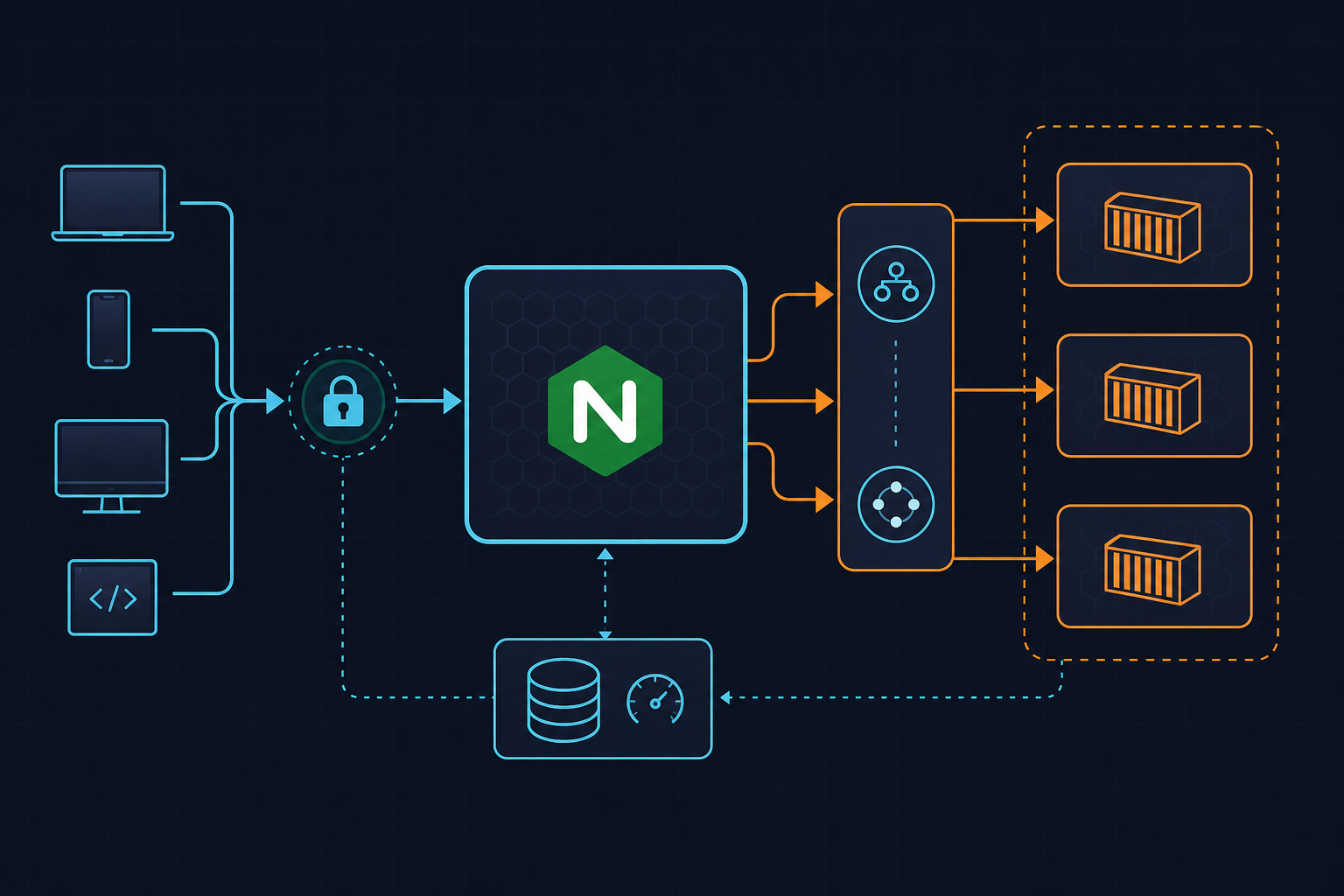
Blocking sensitive dotfiles in nginx-proxy for Dockerized WordPress is not optional hardening — it is a baseline security requirement that most Docker Compose stacks skip entirely. When a WordPress site runs behind nginxproxy/nginx-proxy, the proxy handles all inbound HTTP traffic before PHP-FPM ever sees a request. That makes it the ideal enforcement point for denying access to files that should never be publicly reachable: .env, .git, .gitignore, .htaccess, .htpasswd, .DS_Store, and anything else beginning with a dot.
The threat is concrete. Automated scanners probe for /.env within seconds of a site going live. A leaked .env file can expose database credentials, API keys, and internal hostnames in a single HTTP response. A reachable .git directory can expose your entire source history. Neither nginx-proxy nor WordPress blocks these paths by default.
The fix is a single nginx location block dropped into the proxy’s configuration directory. No image rebuild. No plugin. No WAF subscription required for this layer of protection. We will write the snippet, mount it correctly, validate it live, and cover the edge cases that break real deployments.
If you are also running Cloudflare in front of this stack, the approach here complements origin-level WAF rules — see the related post on Cloudflare WAF custom rules for WordPress origin server protection for that layer.
Before You Start
Before making any changes, confirm the following are in place:
- A running Docker Compose stack using
nginxproxy/nginx-proxy(the current maintained image — the olderjwilder/nginx-proxyis no longer actively maintained). The configuration drop-in mechanism works identically on both, but image references in this tutorial use the current fork. - Write access to the host directory that holds your
docker-compose.yml. We will create a subdirectory at./nginx/conf.d/relative to that file. - Basic familiarity with nginx location blocks. You do not need to be an nginx expert, but you should understand that location directives are evaluated in a defined priority order and that a syntax error in any included file will prevent the entire proxy from reloading.
- Access to run
docker execon the proxy container. We will use it to validate configuration and trigger a graceful reload. - Let’s Encrypt / ACME in use (optional but common). If you are using
nginx-proxy-acme-companion, the/.well-known/acme-challenge/path must remain accessible. The snippet we write handles this explicitly.
No changes to the WordPress container or its PHP configuration are needed. Everything happens at the proxy layer.
Step 1: Write the Dotfile Deny Snippet
Create the directory structure on the host and write the nginx configuration file. The location block uses a case-insensitive regex to match any URI segment beginning with a dot. Critically, we return 404 rather than 403 — a 403 confirms to a scanner that the path exists but is forbidden, while a 404 reveals nothing.
The /.well-known/ prefix gets an explicit nested allow block placed before the deny, which is evaluated first due to nginx’s longest-prefix matching for nested locations:
# Create the directory if it does not exist
mkdir -p ./nginx/conf.d

# Save the following as ./nginx/conf.d/deny-dotfiles.conf
Now create the file ./nginx/conf.d/deny-dotfiles.conf with the following content:
##
## deny-dotfiles.conf
## Blocks access to hidden files and directories (dotfiles).
## Mounted read-only into nginxproxy/nginx-proxy via Docker Compose.
##

location ~* /\. {

    # Exempt ACME challenge path required by Let's Encrypt / acme-companion
    location ~ /\.well-known {
        allow all;
    }

    # Suppress log entries for scanner noise — these requests are not useful
    access_log off;
    log_not_found off;

    deny all;
    return 404;
}
A few decisions worth explaining here. The outer regex ~* is case-insensitive, which matters on case-sensitive Linux filesystems where a scanner might try /.ENV or /.Git. The log_not_found off directive suppresses the default 404 log entry that nginx writes when a file is not found on disk — without it, active scanners will fill your error log with thousands of lines per day. The access_log off directive suppresses the access log entry for the same requests. You can remove both lines if you want full visibility for forensic purposes.
Step 2: Mount the Snippet into the nginx-proxy Container
The nginx-proxy container generates its main configuration at runtime by reading Docker socket events. Its drop-in directory at /etc/nginx/conf.d/ is where additional global snippets are loaded. The critical constraint here: mount individual files, not the directory itself. Mounting a host directory over /etc/nginx/conf.d/ will shadow the default.conf that nginx-proxy generates dynamically, breaking all virtual host routing.
Update your docker-compose.yml to add the bind-mount under the nginx-proxy service volumes. The full relevant excerpt, including a WordPress service and MariaDB backend with Docker secrets for credentials, looks like this:
# docker-compose.yml (relevant excerpt)
# Full example: nginx-proxy + WordPress with dotfile blocking

version: "3.9"

services:

  nginx-proxy:
    image: nginxproxy/nginx-proxy:1.6
    container_name: nginx-proxy
    restart: unless-stopped
    ports:
      - "80:80"
      - "443:443"
    volumes:
      - /var/run/docker.sock:/tmp/docker.sock:ro
      - ./nginx/conf.d/deny-dotfiles.conf:/etc/nginx/conf.d/deny-dotfiles.conf:ro
      - ./nginx/vhost.d:/etc/nginx/vhost.d:ro
      - certs:/etc/nginx/certs:ro
      - html:/usr/share/nginx/html
    networks:
      - proxy

  wordpress:
    image: wordpress:6.5-php8.3-fpm-alpine
    container_name: wordpress
    restart: unless-stopped
    environment:
      VIRTUAL_HOST: example.kuryzhev.cloud
      LETSENCRYPT_HOST: example.kuryzhev.cloud
      WORDPRESS_DB_HOST: db
      WORDPRESS_DB_NAME: wp
      WORDPRESS_DB_USER: wp
      WORDPRESS_DB_PASSWORD_FILE: /run/secrets/db_password
    volumes:
      - wp_data:/var/www/html
    secrets:
      - db_password
    networks:
      - proxy
      - backend

  db:
    image: mariadb:11.3
    container_name: wordpress-db
    restart: unless-stopped
    environment:
      MARIADB_DATABASE: wp
      MARIADB_USER: wp
      MARIADB_PASSWORD_FILE: /run/secrets/db_password
      MARIADB_ROOT_PASSWORD_FILE: /run/secrets/db_root_password
    volumes:
      - db_data:/var/lib/mysql
    secrets:
      - db_password
      - db_root_password
    networks:
      - backend

volumes:
  wp_data:
  db_data:
  certs:
  html:

secrets:
  db_password:
    file: ./secrets/db_password.txt
  db_root_password:
    file: ./secrets/db_root_password.txt

networks:
  proxy:
    external: true
  backend:
    internal: true
The :ro flag on the mount is intentional — the container has no reason to write to this file, and read-only mounts make accidental modification from inside the container impossible.
Apply the change with a targeted recreate of the proxy container only. Since nginx-proxy is stateless for configuration purposes, this is safe:
docker compose up -d --no-deps nginx-proxy
If you prefer a zero-downtime approach on a live proxy handling multiple sites, validate first and then reload without stopping the container:
# Validate the merged nginx configuration
docker exec nginx-proxy nginx -t

# Graceful reload — no dropped connections
docker exec nginx-proxy nginx -s reload
The nginx documentation on controlling nginx processes covers the reload signal behavior in detail if you need to understand what happens to in-flight requests during a reload.
Step 3: Verify the Block and Confirm ACME Exemption
With the container running the updated configuration, use curl to confirm the behavior from outside the host. Replace example.kuryzhev.cloud with your actual domain:
# Should return 404 — dotfile access is blocked
curl -si https://example.kuryzhev.cloud/.env | head -5
curl -si https://example.kuryzhev.cloud/.git/config | head -5
curl -si https://example.kuryzhev.cloud/.htpasswd | head -5

# Should return 200 or 404-from-WordPress — ACME path is not blocked
curl -si https://example.kuryzhev.cloud/.well-known/acme-challenge/test | head -5
The first three requests should produce an HTTP 404 response served directly by nginx — you will notice the response arrives without a X-Powered-By header and returns faster than a WordPress 404, because PHP is never invoked. The fourth request should pass through to the backend.
To confirm the snippet is actually loaded and active in the merged configuration — not just present on disk — inspect the compiled config:
docker exec nginx-proxy nginx -T | grep -A 8 "dotfile\|deny all"
You should see the location block appear in the output. If it does not, the file is not being loaded, which points to a mount path issue (covered in Troubleshooting below).
For ongoing peace of mind, you can also run a quick scan against your own site using a tool like a path traversal scanner or simply a targeted shell loop:
for path in /.env /.git/config /.gitignore /.htaccess /.htpasswd /.DS_Store /.ssh/id_rsa; do
  status=$(curl -so /dev/null -w "%{http_code}" "https://example.kuryzhev.cloud${path}")
  echo "${status}  ${path}"
done
Every line should print 404. If any returns 200 or 403, the deny rule is not applying to that path.
Troubleshooting
Three failure modes appear consistently in real deployments.
1. The snippet is mounted but nginx-proxy ignores it.
This happens when the host file path in the Compose volume definition does not match the actual file location. Docker will create an empty directory at the mount target if the source path does not exist at container start time, silently replacing the file mount with a directory. Verify the file exists on the host before starting the container:
ls -la ./nginx/conf.d/deny-dotfiles.conf
If Docker created a directory there instead, remove it, ensure the file exists, and recreate the container:
docker compose down nginx-proxy
docker compose up -d nginx-proxy
2. nginx -t fails after adding the snippet, taking the proxy down.
A syntax error in the snippet will cause nginx -t to fail, and if the container restarts, nginx will refuse to start entirely. The most common cause is a missing semicolon or an improperly nested location block. Run the test before reloading:
docker exec nginx-proxy nginx -t 2>&1
The output will include the filename and line number of the error. Fix the file on the host (it is bind-mounted read-only, so edit it on the host, not inside the container), then re-run the test before reloading.
3. WordPress plugin or theme functionality breaks after applying the rule.
Some WordPress plugins write or read dotfiles in the webroot — certain backup plugins, for example, create .htaccess programmatically. The deny rule blocks read access from the browser, not write access from PHP running server-side, so plugin functionality that writes these files will continue to work. What will break is any plugin that expects a browser to be able to fetch a dotfile directly. This is almost always a misconfigured plugin, and the correct fix is to reconfigure the plugin rather than weaken the nginx rule.
The one legitimate exception is /.well-known/. If Let’s Encrypt renewals start failing after applying this rule, confirm the nested allow block is present and syntactically correct. The allow must appear inside the outer deny location as a nested block, not as a separate top-level location — the order of evaluation depends on nesting, not file order.
Going Further
Dotfile blocking is one layer. A production WordPress stack behind nginx-proxy benefits from several additional hardening steps that build naturally on what we have done here.
Rate limiting on wp-login.php. Brute-force login attacks are the most common WordPress threat after dotfile scanning. A second snippet in /etc/nginx/conf.d/ can define a rate limit zone and apply it to the login endpoint. The same mount pattern used here applies — one file per concern, all mounted individually.
ModSecurity with nginx-proxy. The nginxproxy/nginx-proxy image does not ship with ModSecurity, but you can build a custom image using their base and add the ModSecurity-nginx connector. The nginx-proxy GitHub repository documents the extension points available for custom image builds.
Centralizing security snippets across multiple sites. If you run several WordPress instances behind the same proxy, maintaining per-site copies of the same snippet creates drift. A cleaner pattern is a single shared Docker volume that holds all security snippets, mounted into the proxy container once. A separate lightweight container (or a simple host-side script) manages the snippet files in that volume, and a docker exec nginx-proxy nginx -s reload propagates changes. This keeps your security posture consistent across all sites without duplicating configuration.
For the broader picture of hardening a WordPress stack — including PHP-FPM tuning, database credential management, and backup automation — the DevOps_DayS archive at kuryzhev.cloud covers each of these topics in dedicated posts.