What we’re building
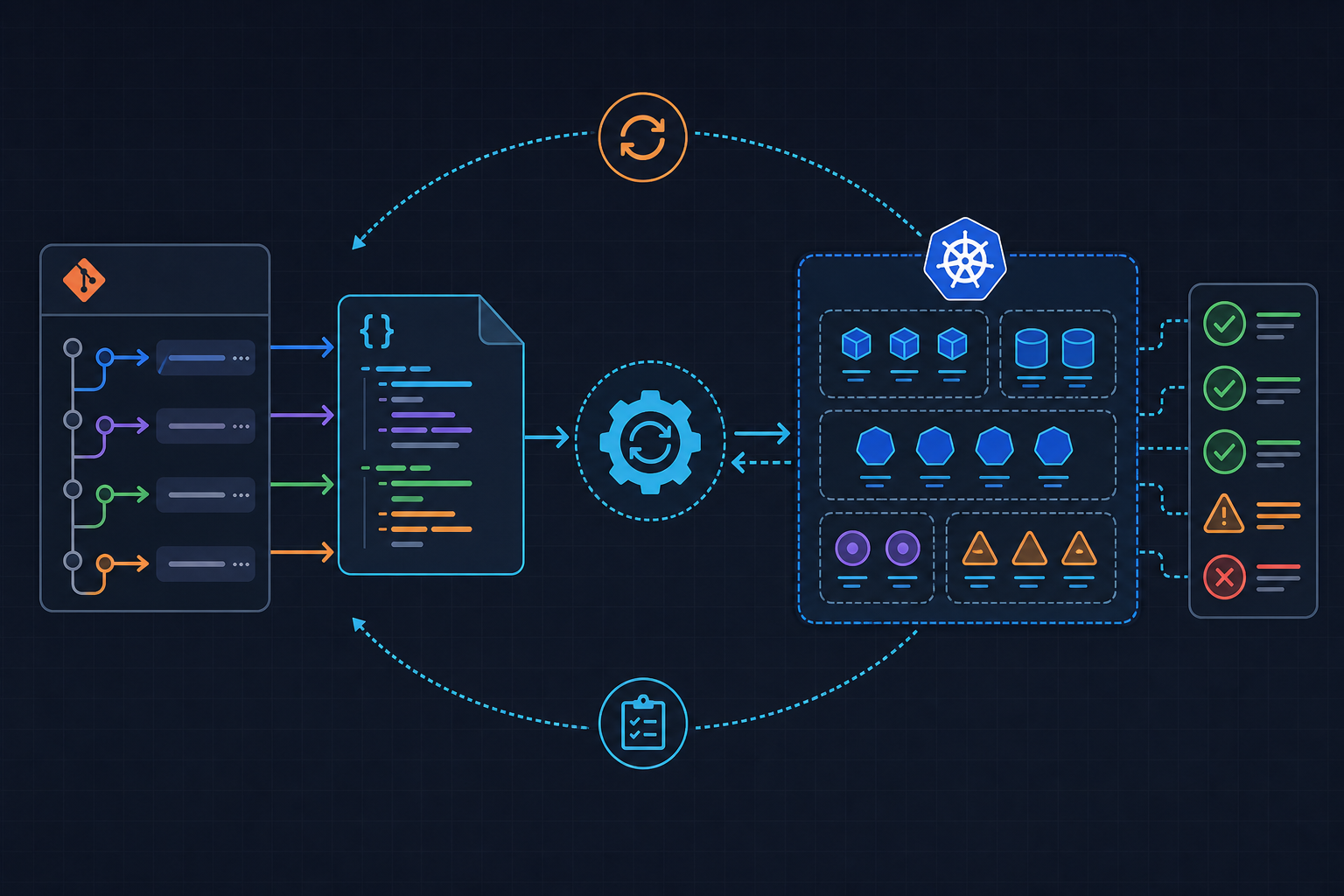
Drift is one of the quieter problems in Kubernetes operations. A manual kubectl apply here, a hotfix patch there — and within weeks the cluster state no longer matches anything in version control. Argo CD solves this by continuously reconciling what runs in the cluster against what lives in Git, and it gives you a clean audit trail to roll back through when something goes wrong.
In this tutorial we install Argo CD into a Kubernetes cluster, register a Git repository as the authoritative source, define an Application manifest with automated sync and self-healing enabled, push a deliberately broken change to observe how Argo CD surfaces the degraded state, and then roll back to a known-good revision using both the CLI and the UI. By the end you will have a working GitOps loop and a clear mental model of how Argo CD tracks history.
Prerequisites
Before starting, confirm the following are in place:
- A running Kubernetes cluster — a local kind or k3s cluster is sufficient for this walkthrough. Production clusters work identically.
- kubectl configured and pointing at the target cluster (
kubectl cluster-infoshould return cleanly). - Argo CD CLI — we install it in the next section, but verify you have write access to
/usr/local/binor an equivalent directory on yourPATH. - A Git repository you control — either GitHub, GitLab, or any self-hosted instance Argo CD can reach over HTTPS or SSH. The repo should contain a
manifests/sample-app/directory with at minimum a Deployment and a Service manifest. - Helm 3 is not required for this guide, but if your manifests are Helm charts rather than raw YAML, the Application manifest accepts a
helm:block underspec.sourcewith no other changes to the workflow.
Installing Argo CD and connecting your Git repository
Start by creating a dedicated namespace and applying the official installation manifest. Argo CD ships everything — the API server, repo server, application controller, and Redis — as a single manifest, which keeps the initial setup straightforward.
kubectl create namespace argocd

kubectl apply -n argocd \
  -f https://raw.githubusercontent.com/argoproj/argo-cd/stable/manifests/install.yaml

# Wait for all pods to reach Running state
kubectl get pods -n argocd -w
Once the pods are healthy, download the CLI. We use the binary directly rather than a package manager to stay version-agnostic across environments.
curl -sSL -o argocd \
  https://github.com/argoproj/argo-cd/releases/latest/download/argocd-linux-amd64

chmod +x argocd
sudo mv argocd /usr/local/bin/argocd

argocd version --client
To access the Argo CD API server locally, port-forward the service. In a production setup you would expose this through an Ingress with TLS, but port-forwarding is adequate for this tutorial.
kubectl port-forward svc/argocd-server -n argocd 8080:443 &Retrieve the auto-generated initial admin password and log in.
argocd admin initial-password -n argocd

argocd login localhost:8080 \
  --username admin \
  --password <password-from-above> \
  --insecure
With an authenticated CLI session established, register your Git repository. Argo CD stores the connection details as a Kubernetes secret in the argocd namespace.
# HTTPS with a personal access token
argocd repo add https://github.com/your-org/sample-app-gitops.git \
  --username your-github-username \
  --password <personal-access-token>

# Confirm the repository is reachable
argocd repo list
A Successful connection status in that last command means Argo CD can clone the repository and read manifests from it. If you see an authentication error, double-check that the token has at least read access to repository contents.
Creating an Application and configuring sync policies
An Argo CD Application is a Kubernetes custom resource that maps a Git path to a cluster namespace and defines how reconciliation should behave. Rather than creating it through the CLI flags, we define it declaratively — which is the correct approach because the Application itself should also live in Git.
Place the following file at gitops/apps/sample-app.yaml in your repository and apply it once to bootstrap the Application. After that, Argo CD manages itself.
# gitops/apps/sample-app.yaml
# Argo CD Application manifest with automated sync and rollback-ready history

apiVersion: argoproj.io/v1alpha1
kind: Application
metadata:
  name: sample-app
  namespace: argocd
  labels:
    env: production
    team: platform
spec:
  project: default

  source:
    repoURL: https://github.com/your-org/sample-app-gitops.git
    targetRevision: HEAD
    path: manifests/sample-app

  destination:
    server: https://kubernetes.default.svc
    namespace: sample-app

  syncPolicy:
    automated:
      prune: true        # remove resources deleted from Git
      selfHeal: true     # revert manual cluster changes
    syncOptions:
      - CreateNamespace=true
      - PrunePropagationPolicy=foreground
      - ApplyOutOfSyncOnly=true
    retry:
      limit: 3
      backoff:
        duration: 10s
        factor: 2
        maxDuration: 3m

  revisionHistoryLimit: 10   # retain last 10 synced revisions for rollback

---
# Trigger a manual sync (CLI reference)
# argocd app sync sample-app --revision HEAD

# View sync history
# argocd app history sample-app

# Roll back to a specific revision (replace 4 with target revision ID)
# argocd app rollback sample-app 4

# Verify live state after rollback
# argocd app get sample-app
# kubectl rollout status deployment/sample-app -n sample-app

---
# Optional: pin a specific tag instead of tracking HEAD
# spec:
#   source:
#     targetRevision: v1.3.0
Apply the Application manifest to the cluster.
kubectl apply -f gitops/apps/sample-app.yamlA few notes on the policy choices worth understanding before moving on:
selfHeal: true is the option most often omitted by teams new to Argo CD, and the omission quietly defeats the purpose of GitOps. Without it, any direct kubectl change persists in the cluster until the next Git commit triggers a sync. With it enabled, Argo CD detects the drift within seconds and reverts it. The combination of prune: true and selfHeal: true gives you a genuinely declarative cluster.
CreateNamespace=true under syncOptions prevents a common first-sync failure. If the destination namespace does not exist, Argo CD will create it rather than reporting a sync error.
revisionHistoryLimit: 10 controls how many past synced states Argo CD retains for rollback. The default is 10; lowering it reduces etcd storage usage in high-frequency deployment environments.
Triggering a sync and simulating a bad deployment
With the Application running and synced to HEAD, open a second terminal and watch the application status in real time.
watch argocd app get sample-appNow introduce a breaking change. A reliable way to simulate this is to set an image tag that does not exist in your registry. Edit the Deployment manifest in your Git repository:
# manifests/sample-app/deployment.yaml (excerpt)
containers:
  - name: sample-app
    image: your-org/sample-app:this-tag-does-not-exist
Commit and push the change.
git add manifests/sample-app/deployment.yaml
git commit -m "ci: test bad image tag for rollback demo"
git push origin main
Within the default polling interval (three minutes) or immediately if you trigger a manual sync, Argo CD will pull the new commit and apply it to the cluster.
argocd app sync sample-app --revision HEADKubernetes will attempt to pull the non-existent image and the pods will enter ImagePullBackOff. Argo CD surfaces this as a Degraded health status. Confirm it:
argocd app get sample-app

# Expected output (abbreviated):
# Health Status:  Degraded
# Sync Status:    Synced

kubectl get pods -n sample-app
# NAME                          READY   STATUS             RESTARTS   AGE
# sample-app-7d9f8b6c4-xk2pq   0/1     ImagePullBackOff   0          90s
Notice that Sync Status is Synced — the cluster reflects exactly what is in Git — but Health Status is Degraded because the workload is not functioning. This distinction matters: Argo CD does not conflate “matches Git” with “is healthy.” Both dimensions are tracked independently.
Rolling back to a healthy revision
List the revision history to identify the last known-good state.
argocd app history sample-appThe output maps Argo CD revision IDs to Git commit SHAs and timestamps. Identify the revision immediately before the bad commit — in a typical run this will be revision ID 3 or 4 depending on how many syncs occurred during setup.
# Example output:
# ID  DATE                           REVISION
# 1   2026-05-26 09:14:22 +0000 UTC  main (a1b2c3d)
# 2   2026-05-26 09:31:07 +0000 UTC  main (e4f5g6h)
# 3   2026-05-26 09:45:53 +0000 UTC  main (i7j8k9l)  <-- bad commit
Roll back to revision 2.
argocd app rollback sample-app 2Argo CD replays the manifests from that Git commit against the cluster. It does not revert the Git history — the bad commit remains in your repository. What changes is the targetRevision Argo CD is reconciling against, which is temporarily pinned to the specified revision ID.
Verify that the deployment recovers.
argocd app get sample-app
# Health Status:  Healthy
# Sync Status:    OutOfSync  <-- expected: cluster is behind HEAD

kubectl rollout status deployment/sample-app -n sample-app
# deployment "sample-app" successfully rolled out

kubectl get pods -n sample-app
# NAME                          READY   STATUS    RESTARTS   AGE
# sample-app-6c8d7f5b9-mn3qr   1/1     Running   0          45s
The OutOfSync status after rollback is intentional and correct. The cluster is now running revision 2 while Git HEAD still contains the bad commit. This gives the team time to push a proper fix. Once a corrected commit lands on main, re-enable automated sync or trigger a manual sync to return to the normal GitOps loop.
You can also perform the rollback from the Argo CD web UI at https://localhost:8080. Navigate to the application, open the History and Rollback panel, locate the target revision, and click Rollback. The UI presents the same revision list as argocd app history and executes the identical operation under the hood.
One operational note: if your Application has automated.selfHeal: true enabled, Argo CD will attempt to re-sync to HEAD shortly after the rollback unless you either disable automated sync temporarily or — better — push the fix to Git promptly. The rollback is a recovery mechanism, not a long-term pinning strategy.
What to do next
The setup you have now covers the core GitOps loop. Several natural extensions are worth exploring as the workflow matures.
Notifications. Argo CD ships a notifications controller that can send sync status, health changes, and rollback events to Slack, PagerDuty, or any webhook. Wiring this up means the team learns about degraded applications without watching a terminal.
RBAC hardening. The default Argo CD installation gives the admin account full access to all applications and clusters. In a shared environment, define AppProjects with source repository restrictions and assign team-scoped roles so developers can sync their own applications without touching infrastructure-level resources.
Multi-cluster deployments. Argo CD can manage remote clusters by registering them with argocd cluster add. The Application manifest’s destination.server field then points to the remote cluster API endpoint rather than the in-cluster address used here.
ApplicationSets. Once you manage more than a handful of applications, maintaining individual Application manifests becomes repetitive. ApplicationSets generate Application resources dynamically from a template and a generator — a Git directory generator, a cluster generator, or a list generator — which is the standard approach for platform teams managing dozens of services across multiple environments.