If your Jenkins pipeline deploy to AWS is still using image:latest and a hardcoded ECR password stored as a plain Username/Password credential, you are one 12-hour token expiry away from a broken production deploy at exactly the wrong moment. I have seen this happen twice on teams I joined mid-incident. The fix is not complicated — but it requires wiring up credentials, image tagging, and the deploy stage in the right order, which most tutorials skip entirely.
This post walks through a complete, production-hardened setup: GitHub push triggers Jenkins, Jenkins builds and pushes a versioned Docker image to ECR, runs unit tests inside the container, then deploys to an EC2 instance over SSH. No Ansible, no manual steps, no latest tags in production.
The Scenario
We have a Node.js microservice living on GitHub. Every push to main should automatically build a Docker image, run the test suite, push the image to Amazon ECR, and deploy it to a target EC2 instance — zero manual SSH required. The same pipeline handles staging and production, gated by a parameter so nobody accidentally ships to prod from a feature branch.
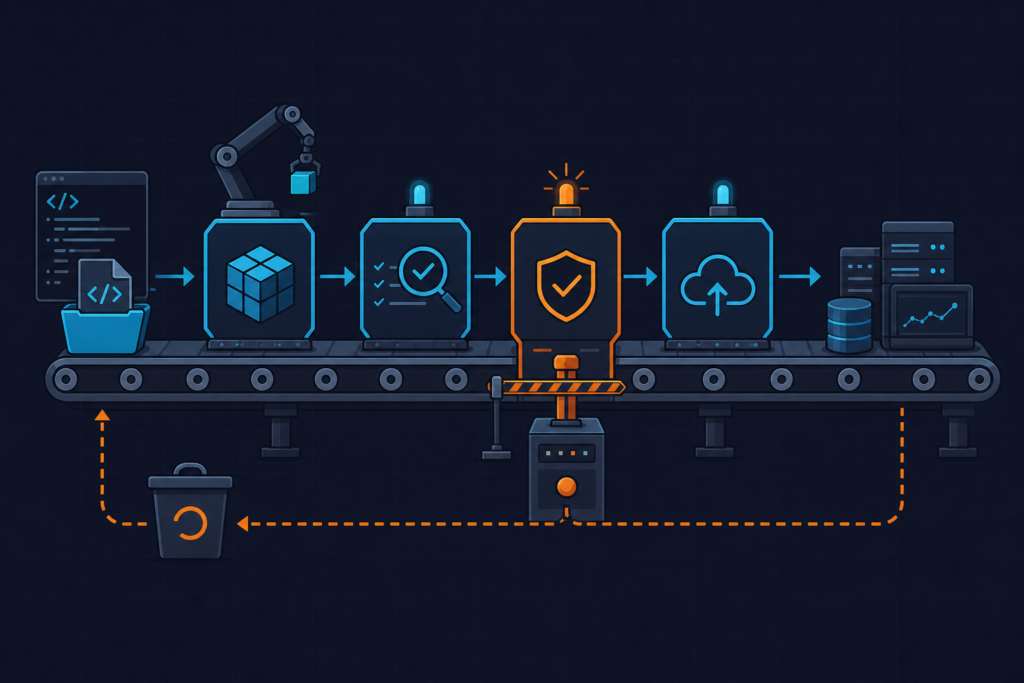
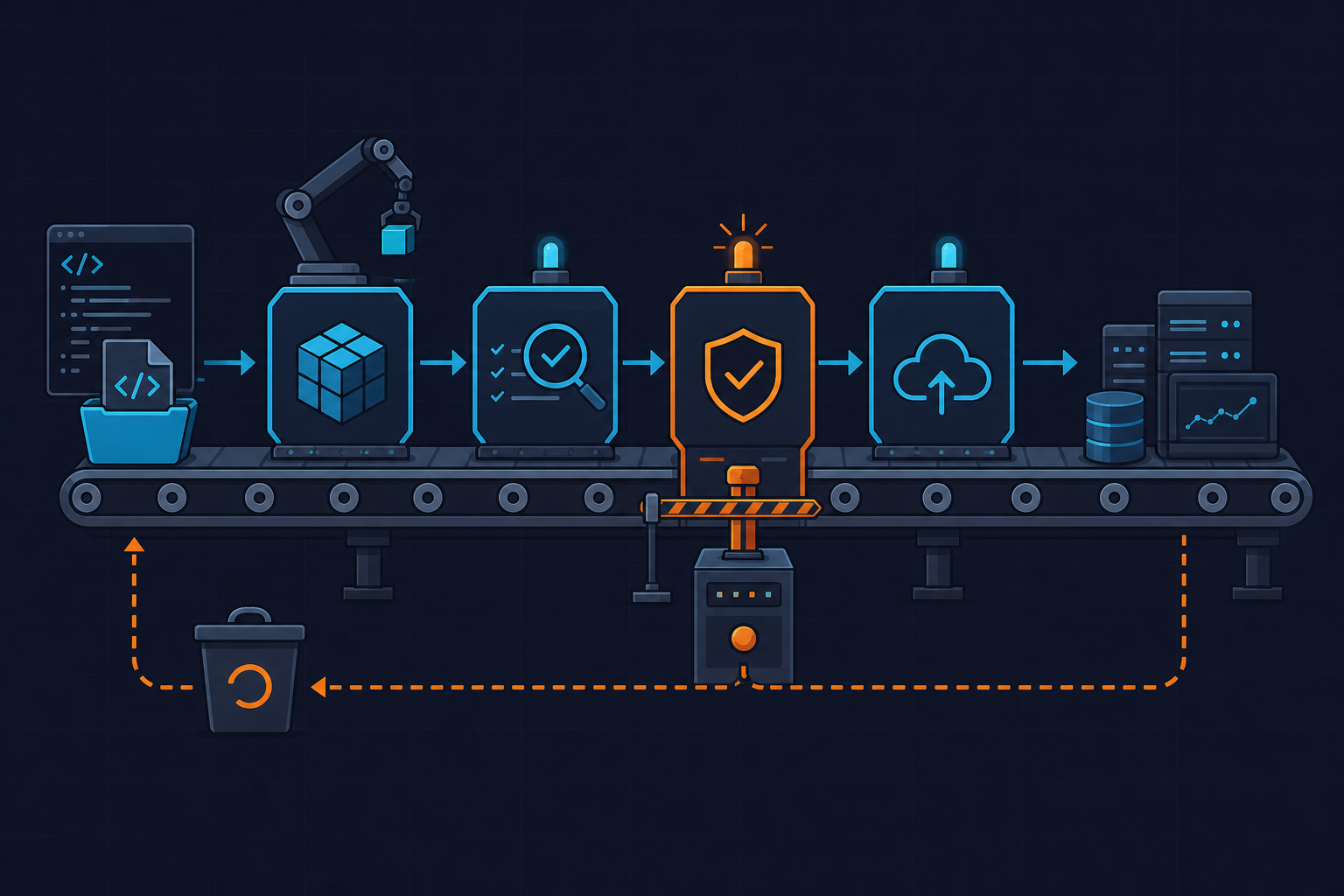
The full pipeline shape looks like this: Source → Build → Test → Push to ECR → Deploy to EC2 via SSH. When everything works correctly, you get a green Jenkins build, a live endpoint returning HTTP 200, and a deployment audit trail in the Jenkins console that shows exactly which image tag is running in which environment. That audit trail matters more than most people realize — it is the first thing you reach for during a 2 AM incident.
We are not doing anything exotic here. No ECS, no Kubernetes, no blue-green infrastructure. Just a real-world pattern that a lot of teams actually run, done properly. Once this is solid, migrating to ECS update-service for zero-downtime rolling deploys is a natural next step — and the Jenkinsfile barely changes.
Prerequisites
Before writing a single line of pipeline code, make sure every dependency is in place at the right version. Environment drift mid-tutorial wastes hours.
Jenkins side: Jenkins 2.440 LTS running on a dedicated EC2 instance — t3.small minimum, t3.medium recommended if you are running Docker builds on the same host. Required plugins: Pipeline, Git, AWS Credentials, Docker Pipeline (563.vd5d2e5c4007f), SSH Agent (295.v9ca_a_1c7cc3a_a_). Install all of them via Manage Jenkins → Plugin Manager → Available. If the Docker Pipeline plugin version is older than 563.x, the ecr: credential helper prefix will not be recognized.
AWS side: An ECR repository already created, and an IAM user (or preferably an EC2 instance profile on the Jenkins host — more on that below) with permissions scoped to ECR push operations and EC2 describe. Store the IAM access key in Jenkins as a credential of type AWS Credentials with the ID aws-credentials. The ECR URI format is <account_id>.dkr.ecr.<region>.amazonaws.com/<repo-name> — the region must match the AWS region configured on the Jenkins agent or the ecr get-login-password call will silently fail with a generic 401.
Local and target tooling: AWS CLI v2.15+ (v1 uses the deprecated aws ecr get-login command which pipes differently and will break the login step), Docker 25+, Git 2.40+. The target EC2 runs Amazon Linux 2023 with the Docker daemon already running and ec2-user in the docker group. Also confirm the jenkins OS user on the Jenkins host is in the docker group — if not, you will hit Cannot connect to the Docker daemon at unix:///var/run/docker.sock immediately. Fix: usermod -aG docker jenkins, then restart Jenkins.
See the official Jenkins Pipeline with Docker documentation for plugin compatibility details.
Step 1 — Configure Jenkins Credentials and ECR Access

This is the step most tutorials either skip or get wrong. Wire up secrets before touching the Jenkinsfile.
Navigate to Manage Jenkins → Credentials → System → Global credentials and add three entries:
- The AWS IAM key pair — type: AWS Credentials, ID:
aws-credentials - The EC2 SSH private key — type: SSH Username with private key, ID:
ec2-ssh-key, username:ec2-user - A GitHub personal access token — type: Username with password, ID:
github-token(used by the Multibranch Pipeline source)
Now set up the ECR credential helper on the Jenkins agent. Install amazon-ecr-credential-helper and add the following to /root/.docker/config.json (or /var/lib/jenkins/.docker/config.json depending on how Jenkins runs):
{
  "credsStore": "ecr-login"
}
This is critical. Without the credential helper, you have two bad options: store the ECR password as a plain credential (it expires after 12 hours, causing mysterious 401 errors mid-pipeline) or call aws ecr get-login-password manually in every stage. The ecr: prefix in docker.withRegistry() handles token refresh automatically when the helper is configured.
Watch out for this: The most common mistake I see is teams storing ECR credentials as Username/Password type in Jenkins. It works fine for the first 12 hours, then starts failing overnight with no clear error message. Use the credential helper. It takes five minutes to set up and you never touch it again.
Step 2 — Write the Jenkinsfile
The Jenkinsfile lives at the repo root. Jenkins detects it automatically when the job type is Multibranch Pipeline or Pipeline from SCM. Here is the full declarative pipeline — I will walk through each block below.
// Jenkinsfile — Declarative pipeline: build, test, deploy to AWS EC2 via ECR
// Assumes: Jenkins 2.440+, Docker Pipeline plugin, SSH Agent plugin, AWS Credentials plugin

pipeline {
    agent any  // replace with a labeled agent node in production: agent { label 'docker-agent' }

    environment {
        AWS_REGION      = 'us-east-1'
        ECR_ACCOUNT_ID  = '123456789012'
        ECR_REPO        = 'my-app'
        IMAGE_TAG       = "${BUILD_NUMBER}-${GIT_COMMIT[0..7]}"  // e.g. 42-a3f9c12
        ECR_URI         = "${ECR_ACCOUNT_ID}.dkr.ecr.${AWS_REGION}.amazonaws.com/${ECR_REPO}"
        FULL_IMAGE      = "${ECR_URI}:${IMAGE_TAG}"
    }

    parameters {
        choice(
            name: 'DEPLOY_ENV',
            choices: ['staging', 'production'],
            description: 'Target deployment environment'
        )
    }

    stages {

        stage('Checkout') {
            steps {
                // Checks out the triggering branch; Multibranch Pipeline sets GIT_COMMIT automatically
                checkout scm
            }
        }

        stage('Build & Push Image') {
            steps {
                script {
                    // ecr: prefix triggers amazon-ecr-credential-helper — no password stored in Jenkins
                    docker.withRegistry("https://${ECR_URI}", "ecr:${AWS_REGION}:aws-credentials") {
                        def appImage = docker.build("${FULL_IMAGE}", "--no-cache .")
                        appImage.push()
                        // Also push a human-readable env tag for traceability in ECR console
                        appImage.push("${DEPLOY_ENV}-latest")
                    }
                }
            }
        }

        stage('Run Tests') {
            steps {
                // Run tests inside the freshly built image — same environment as production
                sh """
                    docker run --rm \\
                        -e NODE_ENV=test \\
                        --name test-runner \\
                        ${FULL_IMAGE} \\
                        npm test -- --reporters=jest-junit --outputFile=test-results/results.xml
                """
            }
            post {
                always {
                    // Publish JUnit results regardless of pass/fail so Jenkins tracks test trends
                    junit allowEmptyResults: true, testResults: 'test-results/**/*.xml'
                }
            }
        }

        stage('Deploy') {
            // Gate: only deploy to production from the main branch
            when {
                expression {
                    return params.DEPLOY_ENV == 'staging' || env.BRANCH_NAME == 'main'
                }
            }
            environment {
                // Resolve the correct EC2 host based on chosen environment
                EC2_HOST = "${params.DEPLOY_ENV == 'production' ? env.PROD_HOST : env.STAGING_HOST}"
            }
            steps {
                // sshagent injects the private key for the duration of this block only
                sshagent(credentials: ['ec2-ssh-key']) {
                    sh """
                        ssh -o StrictHostKeyChecking=no ec2-user@${EC2_HOST} '
                            aws ecr get-login-password --region ${AWS_REGION} \\
                                | docker login --username AWS --password-stdin ${ECR_URI} && \\
                            docker pull ${FULL_IMAGE} && \\
                            docker stop app 2>/dev/null || true && \\
                            docker rm   app 2>/dev/null || true && \\
                            docker run -d --name app --restart unless-stopped \\
                                -p 80:3000 \\
                                -e NODE_ENV=${DEPLOY_ENV} \\
                                ${FULL_IMAGE}
                        '
                    """
                }
            }
        }
    }

    post {
        failure {
            // Notify team on any failure — replace with slackSend or emailext as needed
            echo "Pipeline FAILED for ${FULL_IMAGE} targeting ${params.DEPLOY_ENV}"
        }
        always {
            // Prevent disk exhaustion on the Jenkins agent over repeated builds
            cleanWs()
        }
    }
}
A few things worth calling out explicitly. The IMAGE_TAG uses ${BUILD_NUMBER}-${GIT_COMMIT[0..7]} — something like 42-a3f9c12. This is intentional. Using latest in the deploy command is the single most common mistake that causes “works on my machine” deploys. Jenkins pulls the cached local latest instead of the newly pushed image, and you spend 45 minutes wondering why your code change is not live.
The docker.withRegistry() call requires the full https:// prefix. Omitting it causes unauthorized: authentication required with no further detail — one of the more frustrating silent failures in the Docker Pipeline plugin.
The cleanWs() post step is not optional on small instances. On a t3.small with an 8 GB root volume, Docker layer caches from repeated builds fill the disk in roughly 20 builds. I stopped using shared Jenkins masters for Docker builds entirely after we killed a production deploy because the agent ran out of disk space at the image push step.
Step 3 — Scope the IAM Policy
The pipeline needs AWS permissions to push to ECR. Here is the minimal IAM inline policy — scope it to the single repository, not the entire account.
{
    "Version": "2012-10-17",
    "Statement": [
        {
            "Sid": "ECRAuthToken",
            "Effect": "Allow",
            "Action": "ecr:GetAuthorizationToken",
            "Resource": "*"
        },
        {
            "Sid": "ECRPushToSpecificRepo",
            "Effect": "Allow",
            "Action": [
                "ecr:BatchCheckLayerAvailability",
                "ecr:CompleteLayerUpload",
                "ecr:InitiateLayerUpload",
                "ecr:PutImage",
                "ecr:UploadLayerPart",
                "ecr:DescribeImages",
                "ecr:ListImages"
            ],
            "Resource": "arn:aws:ecr:us-east-1:123456789012:repository/my-app"
        },
        {
            "Sid": "EC2DescribeForHealthChecks",
            "Effect": "Allow",
            "Action": [
                "ec2:DescribeInstances",
                "ec2:DescribeInstanceStatus"
            ],
            "Resource": "*"
        }
    ]
}
Note that ecr:GetAuthorizationToken cannot be scoped to a specific resource — that is an AWS API constraint, not a mistake in the policy. Everything else is locked to the single ECR repository.
Security consideration worth repeating: The IAM user approach works, but it means long-lived access keys sitting in Jenkins credentials. The better path is to attach this policy to an EC2 instance profile on the Jenkins host. The Jenkins AWS Credentials plugin picks up the instance metadata automatically — no key ID, no secret, no rotation burden. I made this switch on every team I have worked with after the second time a leaked key caused an incident. See the AWS IAM roles for EC2 documentation for setup details.
Also: StrictHostKeyChecking=no in the SSH command is acceptable for known internal hosts, but if your security posture requires it, replace it with a known_hosts file pre-populated with the EC2 host fingerprint. On a Multibranch Pipeline, store it as a Jenkins file credential and copy it into ~/.ssh/known_hosts before the SSH step.
Verify and Test
A green Jenkins build is not proof the pipeline works. Here is how we actually verify the full end-to-end flow.
Trigger a build manually first via Build with Parameters, choosing staging. Watch the Console Output in real time. You are looking for two specific lines: Login Succeeded in the Build & Push stage, and the new container ID printed by docker run in the Deploy stage. If the login line is missing, the credential helper is not configured correctly on the agent.
Once the build is green, SSH into the target EC2 and run this to confirm the right image is actually running:
# Confirm the new versioned image tag is running, not a stale container
docker ps --format "table {{.Image}}\t{{.Status}}\t{{.Ports}}"
You should see your versioned tag — something like 123456789012.dkr.ecr.us-east-1.amazonaws.com/my-app:42-a3f9c12 — with status Up X seconds and port 0.0.0.0:80->3000/tcp. If you see my-app:latest, the deploy command is using the wrong image reference.
Hit the health endpoint directly:
curl -I http://<ec2-public-ip>/healthExpect HTTP/1.1 200 OK. Then do the real gate test: intentionally break a unit test, push to main, and confirm the pipeline fails at the Run Tests stage without reaching Deploy. This is the proof the quality gate actually works — not just that the happy path is green. A lot of teams skip this step and find out the hard way that their test stage was misconfigured to always exit 0.
Check the Jenkins workspace path at /var/lib/jenkins/workspace/<job-name> after a few builds to confirm cleanWs() is doing its job. The directory should be empty or absent between runs.
What we have built here is a fully automated Jenkins pipeline deploy to AWS: GitHub push triggers a versioned Docker build, tests run inside the same image that ships to production, the image lands in ECR with a traceable tag, and the EC2 deploy happens over SSH with credentials scoped correctly at every stage. Slack alerting fires on failure, and the workspace cleans itself up. The natural next steps from here are migrating the deploy stage from direct SSH to ECS update-service for zero-downtime rolling deploys, adding a SonarQube stage for static analysis between Build and Test, and replacing the IAM user entirely with an EC2 instance profile on the Jenkins host to eliminate long-lived key management. Each of those is a one-stage change to the Jenkinsfile — which is exactly the point of building the foundation right the first time. More CI/CD patterns we use in production are documented at kuryzhev.cloud.